
How to Set Up Lead Nurturing Automations by Lead Source in HealthdeskAI
Last updated: January 1, 2026This article explains how to customize your lead nurturing automations based on where a lead came from. Using lead sources lets you control exactly who receives each automation, so your messaging stays relevant and targeted.
What Are Lead Source-Based Automations
Lead source-based automations allow you to send a specific automation only to leads that came from selected sources, such as Facebook Ads, Google Ads, newspapers, or any custom source you’ve created.
By choosing sources, you can make sure the right leads receive the right messages without overlapping automations.
Where to Find Lead Source Settings
Go to your Automations page in Healthdesk.
Open your Lead Nurturing automation.
Click into Instructions.
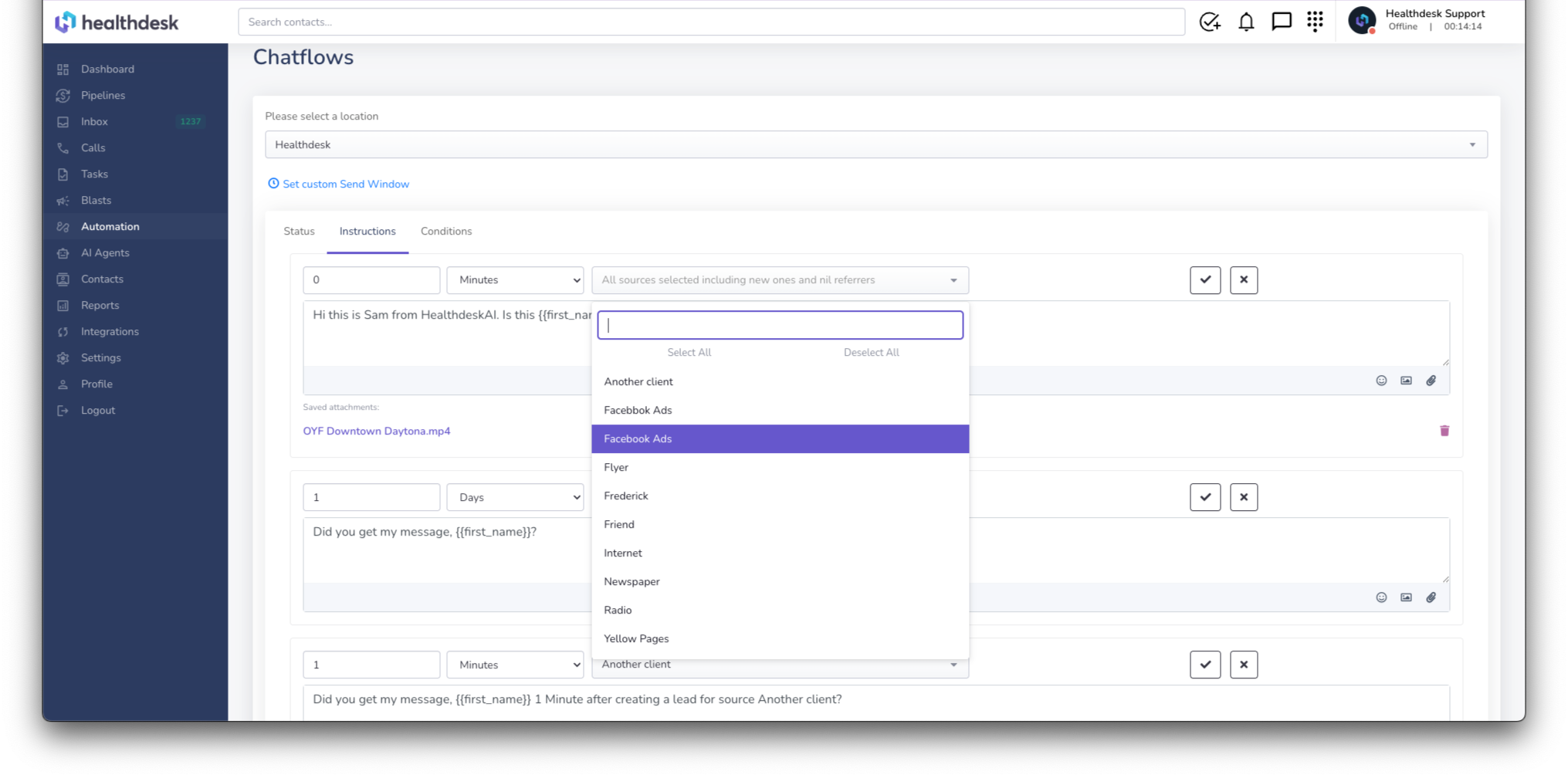
Look for the new Source dropdown.
By default, the dropdown is set to include all sources, including new ones.
Using “All Sources Selected”
When all sources are selected, the automation will be sent to every lead, regardless of where they came from.
This is useful if you want one universal lead nurturing automation for all incoming leads.
Selecting Specific Lead Sources
You can customize who receives an automation by adjusting the source selection:
Open the Source dropdown in the automation.
Deselect all sources if you want to start from scratch.
Select only the sources you want this automation to apply to.
For example:
Select Facebook Ads to send this automation only to leads from Facebook.
Add Newspaper if you want those leads included as well.
Once selected, only leads from those sources will receive this automation.
How Source-Based Automations Work Together
When a lead comes in from a selected source:
They will receive this automation.
They will not receive other automations that are configured for different sources.
This prevents leads from getting multiple or conflicting automations at the same time.
Using Sources for Advanced Ad Targeting
Lead sources are especially powerful for ads.
For example:
Create one source for a Facebook ad targeting weight loss.
Create another source for a Google ad targeting longevity.
Each source can trigger a different automation with messaging tailored to that interest.
This allows you to match your follow-up exactly to the ad or campaign the lead responded to.
Why This Is Useful
Source-based automations help you:
Be more selective about who receives each message
Personalize follow-up based on intent
Keep automations organized and non-overlapping
Improve engagement from ads and campaigns
FAQ
Q: What does the Source dropdown control in a lead nurturing automation?
A: The Source dropdown controls which leads receive that automation based on where the lead came from. Only leads from the selected sources will receive the automation. The Source values mirror your Referred By values (i.e. Referral Types) in Mindbody.
Q: What happens if I leave all sources selected?
A: When all sources are selected, the automation is sent to everyone, including any new sources that are added later.
Q: Can I send an automation to only one lead source?
A: Yes. You can deselect all sources and then select a single source, such as Facebook Ads, so only leads from that source receive the automation.
Q: Can I select more than one source for the same automation?
A: Yes. You can select multiple sources. Any lead from one of the selected sources will receive that automation.
Q: Will a lead receive multiple automations if they match more than one source?
A: No. When a lead matches the selected sources for an automation, they will receive that automation and will not receive other automations set up in the configuration for different sources.
Q: Why isn’t a lead receiving an automation I set up?
A: Make sure the lead’s source matches one of the sources selected in the automation’s Source dropdown.
Q: How is this useful for Facebook Ads or Google Ads?
A: You can create different sources for different ads or campaigns and send different automations based on which ad the lead came through. This lets you tailor your messaging to the lead’s interest.
Q: Can I change the sources later?
A: Yes. You can go back into the automation at any time and update the selected sources to change who receives it.
